From zero to your organization inside GoHighLevel
Ten minutes, no technical skills. You install a Chrome extension, paste two codes, and your doTERRA organization shows up in your GHL sub-account — fields filled, status tags applied, ready for automations.
1 · Install the extension
Install it
It's on the Chrome Web Store — click «Add to Chrome» and it installs and updates itself automatically. →
Pin it
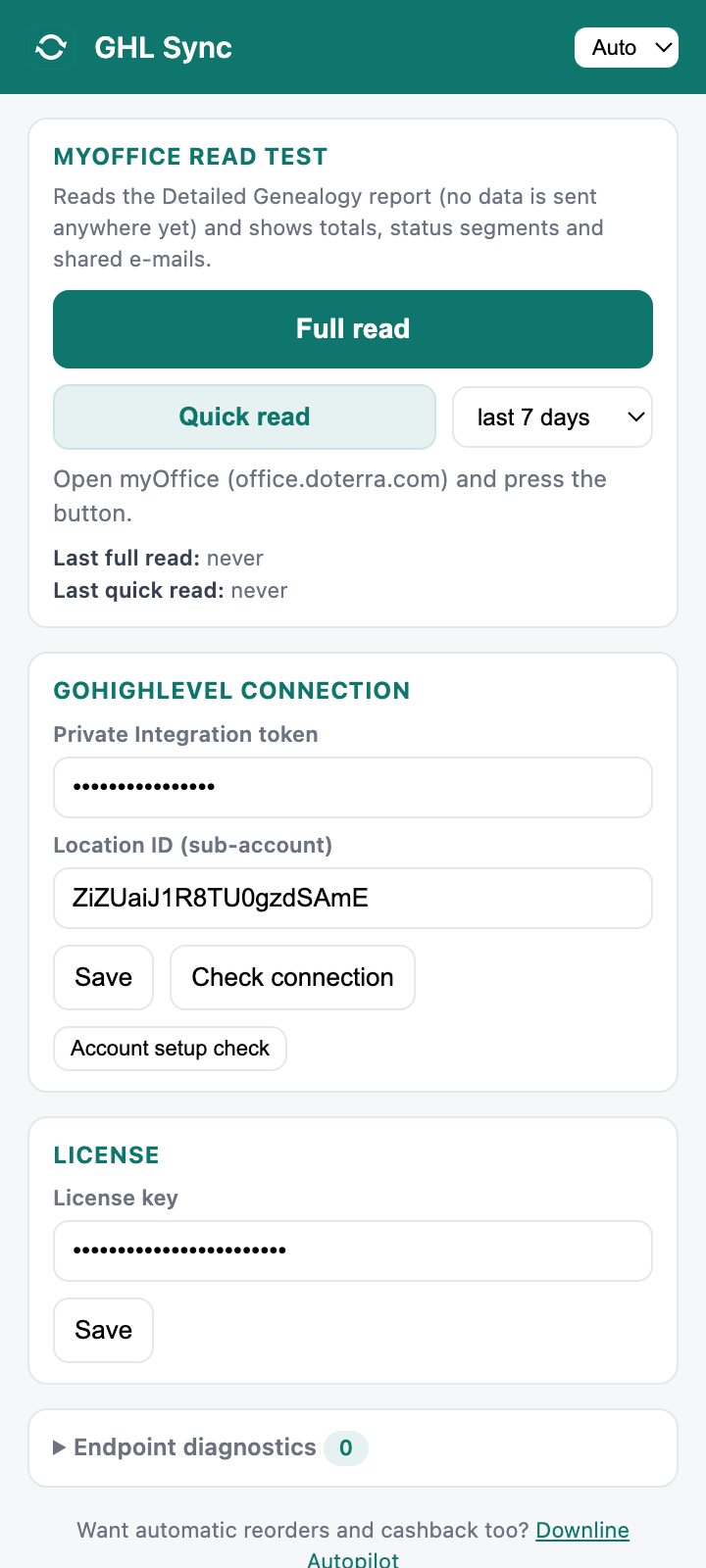
Click the puzzle icon in Chrome's toolbar and pin GHL Sync. The popup looks like this:
2 · Paste your license key
You received it on the purchase page and by e-mail (format GSFM-XXXX-XXXX-XXXX-XXXX). Open the popup → License → paste → Save.
Each key binds to the first GoHighLevel sub-account that activates it. Team licenses come with 10 keys: hand one key per person, each with their own sub-account.
3 · Connect your GoHighLevel sub-account
Create a Private Integration token
In GHL: Settings → Private Integrations → Create new integration. Name it anything (e.g. «GHL Sync»). Select these scopes: View/Edit Contacts, View/Edit Custom Fields, View/Edit Tags. Click Create and copy the token — GHL shows it only once.
Find your Location ID
It's in your GHL address bar: …/v2/location/XXXXXXXX/dashboard — the code between /location/ and the next slash.
Paste both in the popup
GoHighLevel connection → paste token and Location ID → Save → Check connection. You should see «Connected to “your sub-account”». Then press Account setup check: the extension creates its custom fields and tags for you and reports Fields 12/12 · Tags 10/10.
4 · Read your organization from myOffice
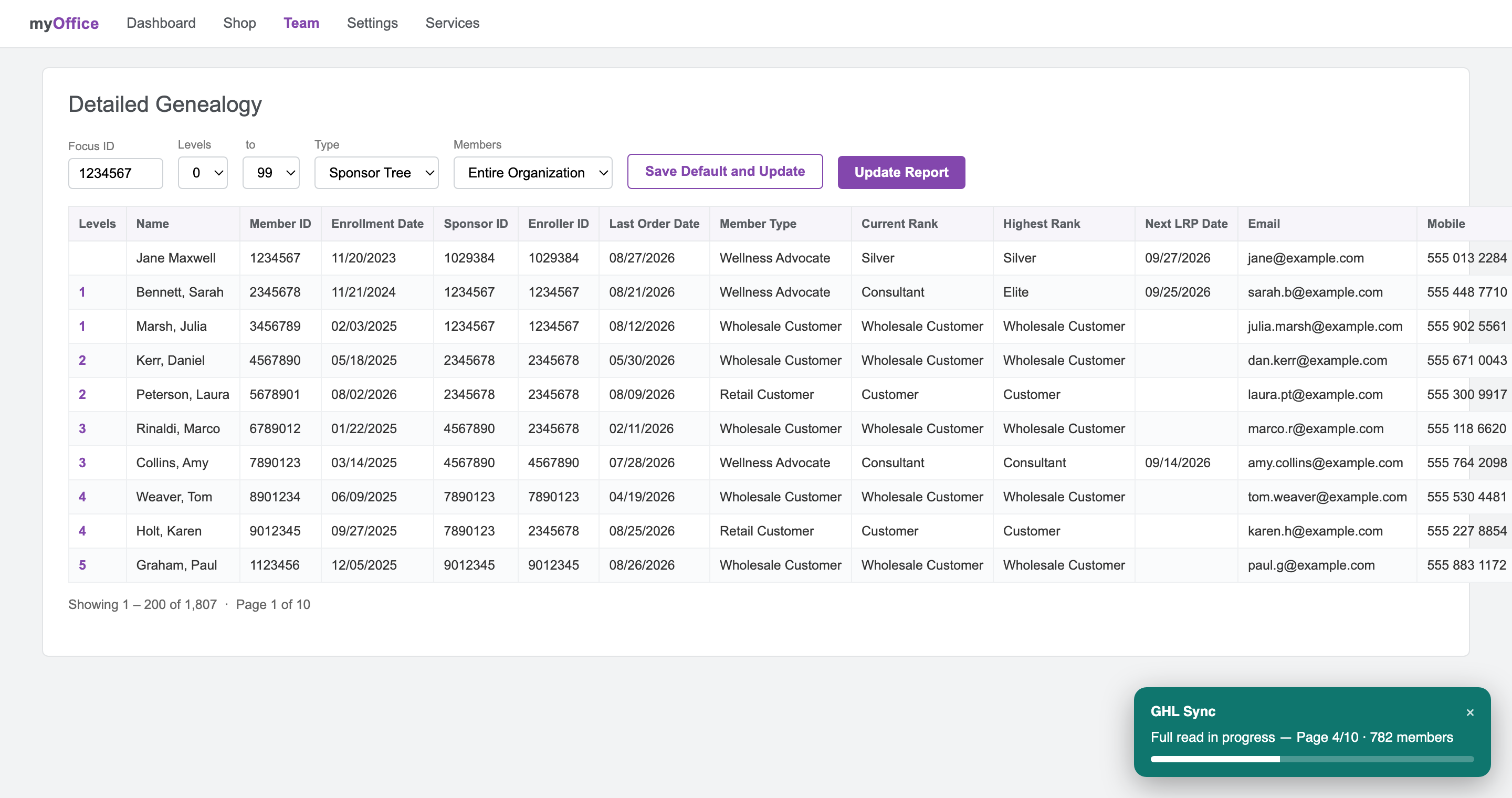
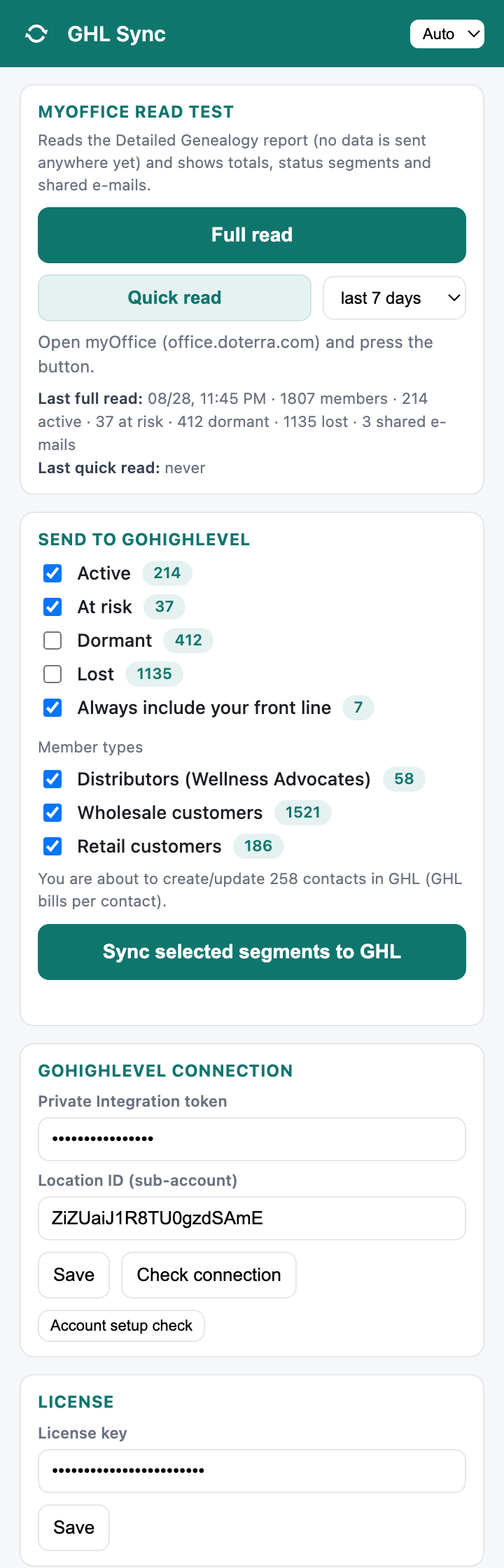
Log in at office.doterra.com (any page), open the popup and press Full read. A teal progress box appears bottom-right while the extension reads the Detailed Genealogy report page by page — about a minute per 5,000 members, at any organization size. Nothing is sent anywhere yet: the read ends with your numbers. On the newer myOffice interface — or whenever you prefer — you can instead export the Detailed Genealogy from doTERRA and press «Load exported file» to load it straight into the plugin, with no size limit.
5 · Choose who goes to GHL — then sync
Every contact you sync can enter your workflows (and GoHighLevel bills the messages they send by usage), so nothing syncs without you seeing the number first. Defaults: Active + At risk + your front line, all member types. Tick what you want — the «You are about to create/update N contacts» line is exact, not an estimate. Then press Sync selected segments to GHL.
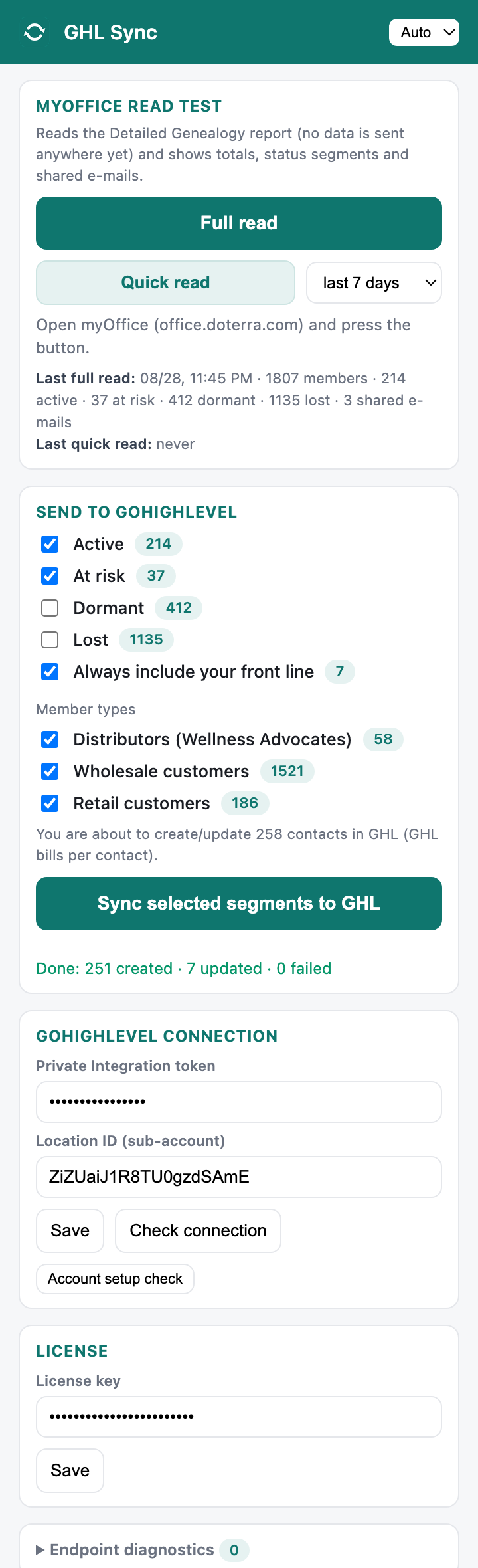
Open Contacts in GHL: your members are there with every field filled and their status tags. Filter by tag (e.g. dot-at-risk) and save it as a Smart List — that's your daily working view.
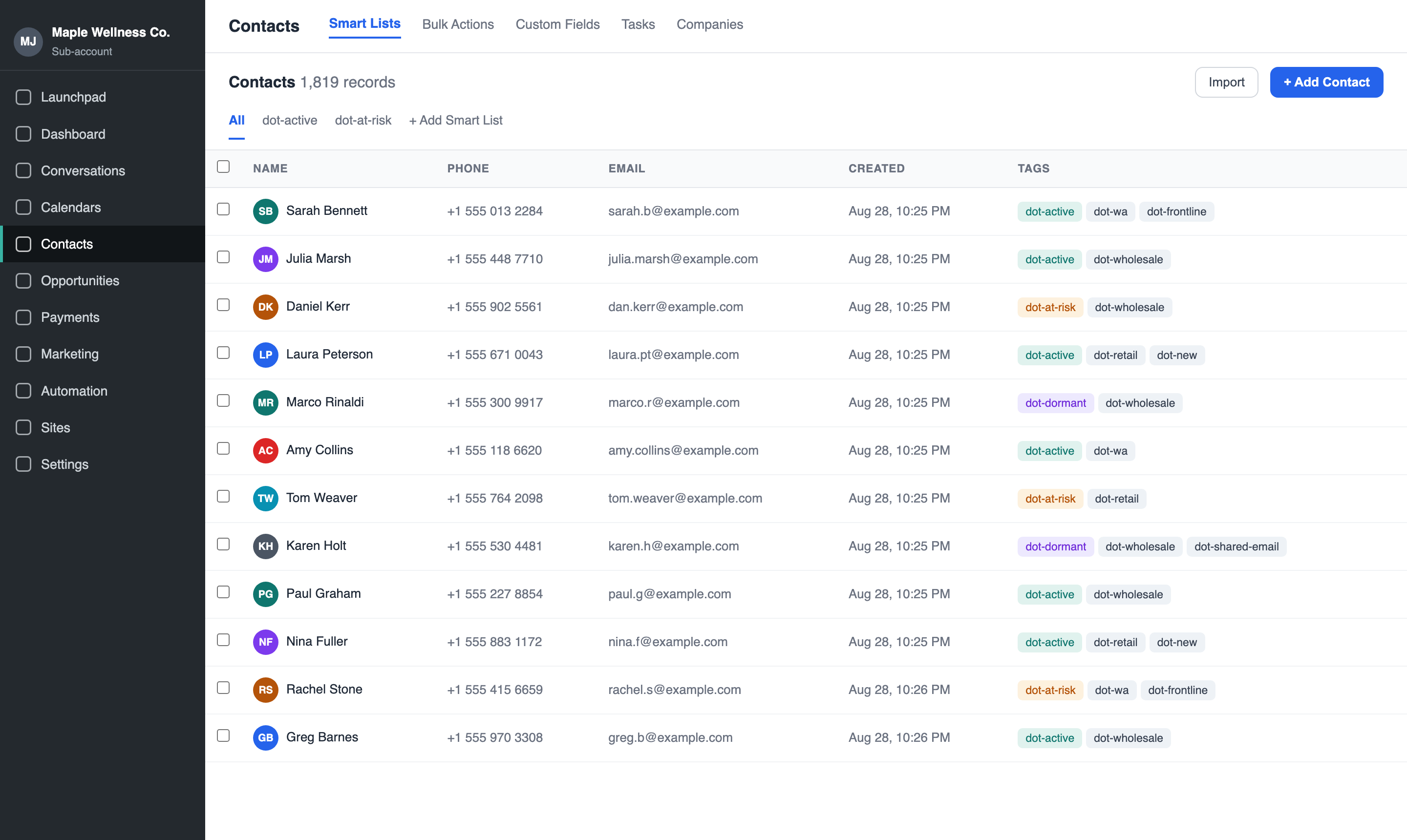
What gets created in your account
12 contact fields
- doTERRA Member ID — the key: re-syncs update this contact, never duplicate it
- doTERRA Member Type — Wellness Advocate / Wholesale Customer / Retail Customer
- doTERRA Rank (provisional) — mid-month rank — named provisional on purpose
- doTERRA Highest Rank — highest rank ever reached
- doTERRA Enrollment Date — when they joined
- doTERRA Last Order Date — last activity seen in myOffice
- doTERRA Sponsor ID / Enroller ID — upline references
- doTERRA LRP Active + Next LRP Date — loyalty order status and next processing date
- doTERRA PV / OV (current month) — current-month volumes
Status tags (recalculated every sync)
- dot-active — ordered in the last 60 days
- dot-at-risk — 61–120 days since last order
- dot-dormant — 121–365 days
- dot-lost — over a year (or never)
- dot-new — enrolled in the last 30 days
- dot-wa / dot-wholesale / dot-retail — member type
- dot-frontline — your level-1 members
- dot-shared-email — two members share one e-mail (see below)
Everything is yours and editable. The extension never touches tags that don't start with dot-, and never overwrites your workflow edits.
Automations: the sync and your status tags are live now — your tags already fire any workflow you build today with the «Contact Tag» trigger. The 4 ready-made templates (welcome, dormant reactivation, reorder reminder, at-risk alert) are on the way, arriving in an automatic update.
Troubleshooting
«Report not available» after pressing Full read
Open Team → Detailed Genealogy in myOffice, click «Update Report», then run the read again.
The read finds very few members
In the Detailed Genealogy report set Levels 0–99 and Members «Entire Organization», update the report, retry. The extension sets this up by itself on most accounts.
«Check connection» fails
The token was copied with spaces, or is revoked. Create a fresh Private Integration token and paste it again. Also verify the Location ID matches the sub-account the token was created in.
«location-mismatch» when verifying the license
Your key is bound to a different GHL sub-account. Each key works with exactly one sub-account — contact us to unbind it if you migrated.
The sync stops midway
Leave the myOffice tab open during the sync. If it was interrupted, press the sync button again: it resumes where it left off instead of starting over.
Contacts appear without e-mail
That member shares an e-mail with someone else in your organization (family accounts). GHL would silently merge them into one contact — so only the first member keeps the e-mail and both get the dot-shared-email tag.
My own tags disappeared?
Never. The extension only ever adds or removes tags starting with dot-. Anything else on your contacts is untouched.